
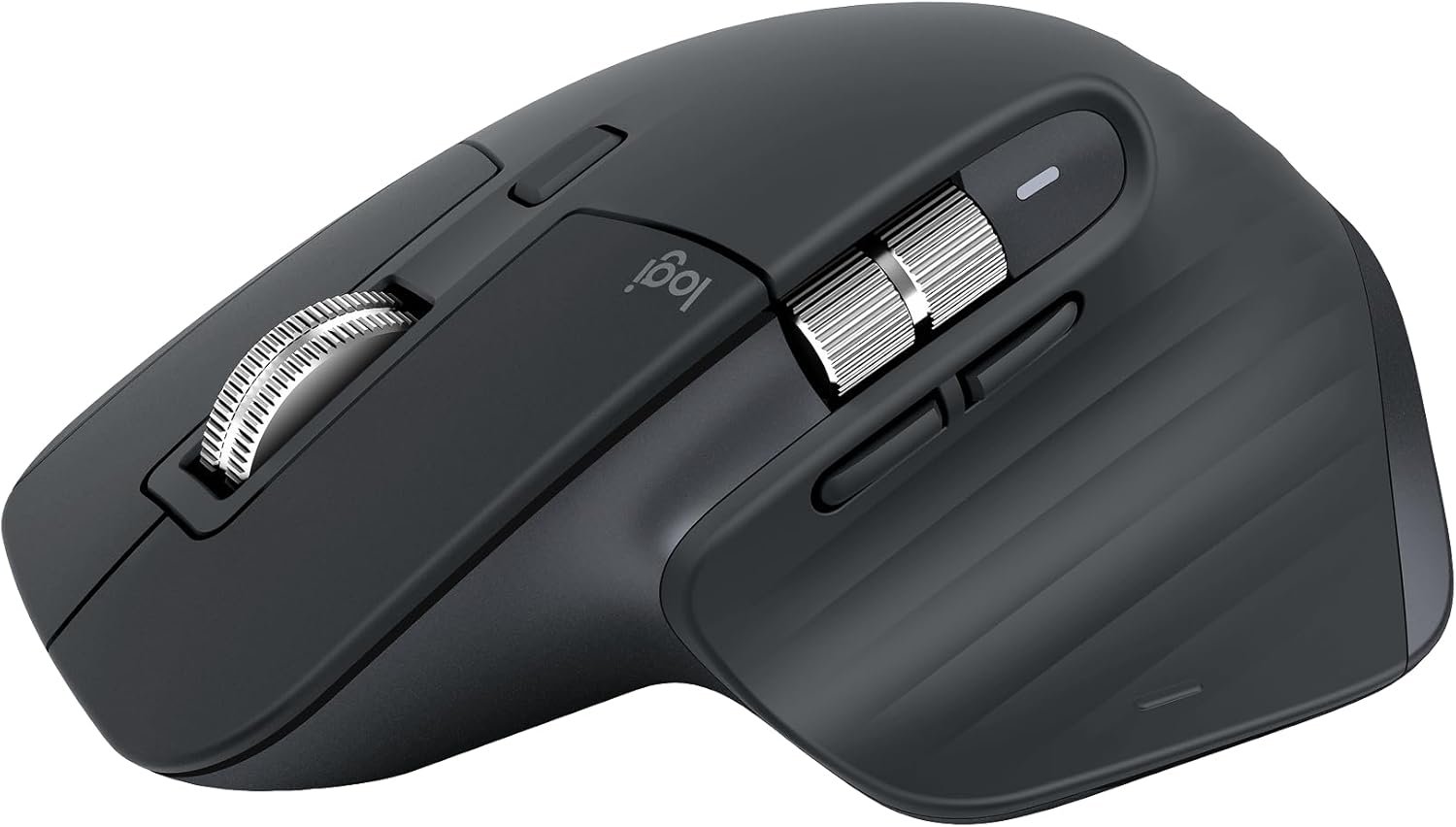
Logitech MX Master 3S review: The MX Master 3S is a productivity-focused wireless mouse designed for desk-based work, with advanced scrolling, customizable controls, multi-device support, and 8,000 DPI tracking.
Best for: Productivity-focused desk setups and multi-device workflows.
Research note: Smart Desk has not independently hands-on tested this product. This review is based on Logitech’s published product information and technical specifications.
At a Glance
8000 DPI
7 Buttons
3 Devices
USB-C
Best for
Desk-based productivity
Connectivity
Bluetooth + Logi Bolt
Battery
Up to 70 days
Weight
141 g
Quick Take
The MX Master 3S is designed around productivity rather than portability.
Its main strengths are the MagSpeed scroll wheel, customizable buttons, multi-device switching, quiet clicks, and rechargeable battery. These features make it particularly relevant for people who spend most of their working time at a desk.
The trade-off is its larger, heavier design. At 141 g, it is substantially more substantial than compact travel mice.
Best fit: Desk-based productivity users.
Consider another mouse if: You prioritize portability, prefer a lightweight design, or need a left-handed or ambidextrous mouse.
Key Strength & What to Consider
What Stands Out
- MagSpeed electromagnetic scrolling
- Up to 8,000 DPI tracking
- 7 customizable buttons
- Bluetooth + Logi Bolt
- Switching between up to three devices
- Quiet Click technology
- USB-C rechargeable battery
- Up to 70 days of rated battery life
What to Consider
- 141g is relatively heavy
- Larger right-handed design
- Not designed primarily for portability
- Higher price than basic wireless mice
- Some productivity features depend on Logitech software
Design and Comfort
The MX Master 3S uses a large, sculpted shape designed around a right-handed grip.
At 141 g, it is considerably heavier than compact wireless mice. That makes it better suited to a permanent desk setup than a mouse that spends most of its time inside a laptop bag.
The thumb area also provides additional controls, including a thumb wheel and gesture button.
What to Consider
The MX Master 3S is right-handed only. Users who prefer a symmetrical or ambidextrous mouse should consider another design.
Mouse size also matters. A feature-rich mouse is not automatically more comfortable if its shape does not match your hand or grip.
Related guide: How to Choose a Wireless Mouse for Work
Tracking Performance
The MX Master 3S uses an 8,000 DPI Darkfield sensor.
Logitech states that it can track on virtually any surface, including glass with a minimum thickness of 4 mm.
For typical office work, you do not need to use 8,000 DPI. The more practical benefit is the flexibility to adjust tracking sensitivity to match your screen size, desk setup, and preferred pointer speed.
For documents, spreadsheets, browsers, and creative applications, that flexibility is generally more relevant than the maximum DPI number itself.
MagSpeed Scrolling
The MagSpeed electromagnetic scroll wheel is one of the most distinctive features of the MX Master 3S.
It supports both precise scrolling and fast free-spinning scrolling. Logitech rates the wheel at up to 1,000 lines per second.
This can be particularly useful for:
- Long documents
- Spreadsheets
- Large web pages
- Research materials
- Project files
- Long timelines
For users who regularly work with large amounts of content, the scroll wheel may be more useful than the high DPI sensor.
Buttons and Customization
The MX Master 3S has seven buttons, including dedicated controls around the thumb area and scroll wheel.
Through Logitech Options+, supported users can customize button actions and create application-specific controls.
This is most useful when you repeatedly perform the same actions.
For example, a productivity-focused setup could assign buttons to application switching, navigation, or other frequently used commands.
You do not need to use every available control. The mouse can remain relatively simple at first, with additional customization added when it improves your workflow.
Multi-Device Connectivity
The MX Master 3S supports Bluetooth and Logitech’s Logi Bolt wireless technology.
It can switch between up to three devices using Easy-Switch.
That makes it useful for a desk setup involving multiple computers—for example, a work laptop and a personal computer.
If you frequently move between systems, this can reduce the need for multiple mice.
Quiet Clicks
The MX Master 3S uses Logitech’s Quiet Click technology. Logitech states that it reduces click noise by 90% compared with the previous MX Master 3.
This is particularly relevant for shared workspaces, offices, libraries, or home offices where repeated clicking can become distracting.
It does not make the mouse completely silent, but the design is intended to provide a quieter clicking experience without removing the tactile feedback of the buttons.
Battery and Charging
The MX Master 3S uses a 500 mAh rechargeable Li-Po battery and charges through USB-C.
Logitech rates it for up to 70 days on a full charge.
Actual battery life can vary depending on usage and other factors, but the combination of USB-C charging and a long rated battery life means charging should not need to be part of your daily routine.
For a work mouse, this is more useful than simply having a large battery number: the goal is to avoid interruptions during normal work.
Software Support
Logitech Options+ is an important part of the MX Master 3S experience.
On Windows and macOS, it provides customization options for supported buttons and tracking settings. Logitech also supports workflow features such as Logitech Flow for moving between compatible computers.
This gives the MX Master 3S more flexibility than a basic wireless mouse.
The trade-off is that some of its productivity features depend on software. If you prefer a mouse that works with minimal configuration, a simpler model may be a better fit.
MX Master 3S vs Pebble 2 M350s
The difference between these two mice is less about which specification is higher and more about what kind of work setup you have.
MX Master 3S
Desk productivity
★★★★☆
141 g
7 buttons
Advanced scrolling
Pebble 2 M350s
Portable work
★★★☆☆
Lightweight
Simple controls
Compact design
Not sure which fits your setup?
Read the full comparison → Logitech Pebble 2 M350s vs MX Master 3S: Which Mouse Should You Buy?.
Who Is the MX Master 3S For?
A good fit if you:
√
Work mainly at a desk
√
Use multiple computers
√
Often scroll through long documents
√
Work with spreadsheets or large web pages
√
Prefer a larger right-handed mouse
√
Want a rechargeable USB-C mouse
√
Care about reducing click noise
Consider another mouse if:
×
Travel frequently
×
Prefer lightweight mice
×
Have smaller hands and prefer compact designs
×
Need a left-handed or ambidextrous mouse
×
Want a lower-cost wireless mouse
×
Prefer minimal software configuration
FAQ
Yes. Its combination of customizable buttons, multi-device support, quiet clicks, and advanced scrolling is designed around productivity and desk-based workflows.
The MX Master 3S has a relatively large right-handed design. Users with smaller hands should consider the dimensions and grip style carefully before buying.
Yes. It can switch between up to three devices using Easy-Switch.
Yes. The mouse has a USB-C rechargeable battery.
No. Most office users do not need 8,000 DPI. The benefit is having a wide range of tracking sensitivity rather than needing to use the maximum setting.
It can be used while traveling, but its 141 g weight and larger shape make it less portable than compact mice such as the Pebble 2 M350s.
Final Takeaway
The Logitech MX Master 3S is built around a simple idea: give desk-based users more control over everyday work.
Its most useful features are not simply the 8,000 DPI sensor. The combination of MagSpeed scrolling, customizable controls, multi-device connectivity, Quiet Clicks, and long battery life is what separates it from a basic wireless mouse.
For a productivity-focused desk, those features can be useful. For a laptop bag or minimalist setup, a smaller and simpler mouse may make more sense.
For more options, see 【LINK】Best Wireless Mice for Work in 2026【/LINK】.
Ready to Choose Your Work Mouse?
If you want advanced controls and a productivity-focused desk setup, check the MX Master 3S.
If portability and simplicity matter more, compare it with the Pebble 2 M350s.
Disclosure: Smart Desk may earn commissions from qualifying purchases made through affiliate links. This does not affect the price you pay and helps support our research-based content.
Sources & Last Updated
Primary sources:
- Logitech MX Master 3S official product information
- Logitech MX Master 3S technical specifications
- Logitech MX Master 3S for Business specifications
Last Updated: October 2, 2026
Research status: Research-based review. Smart Desk has not independently hands-on tested this product.