
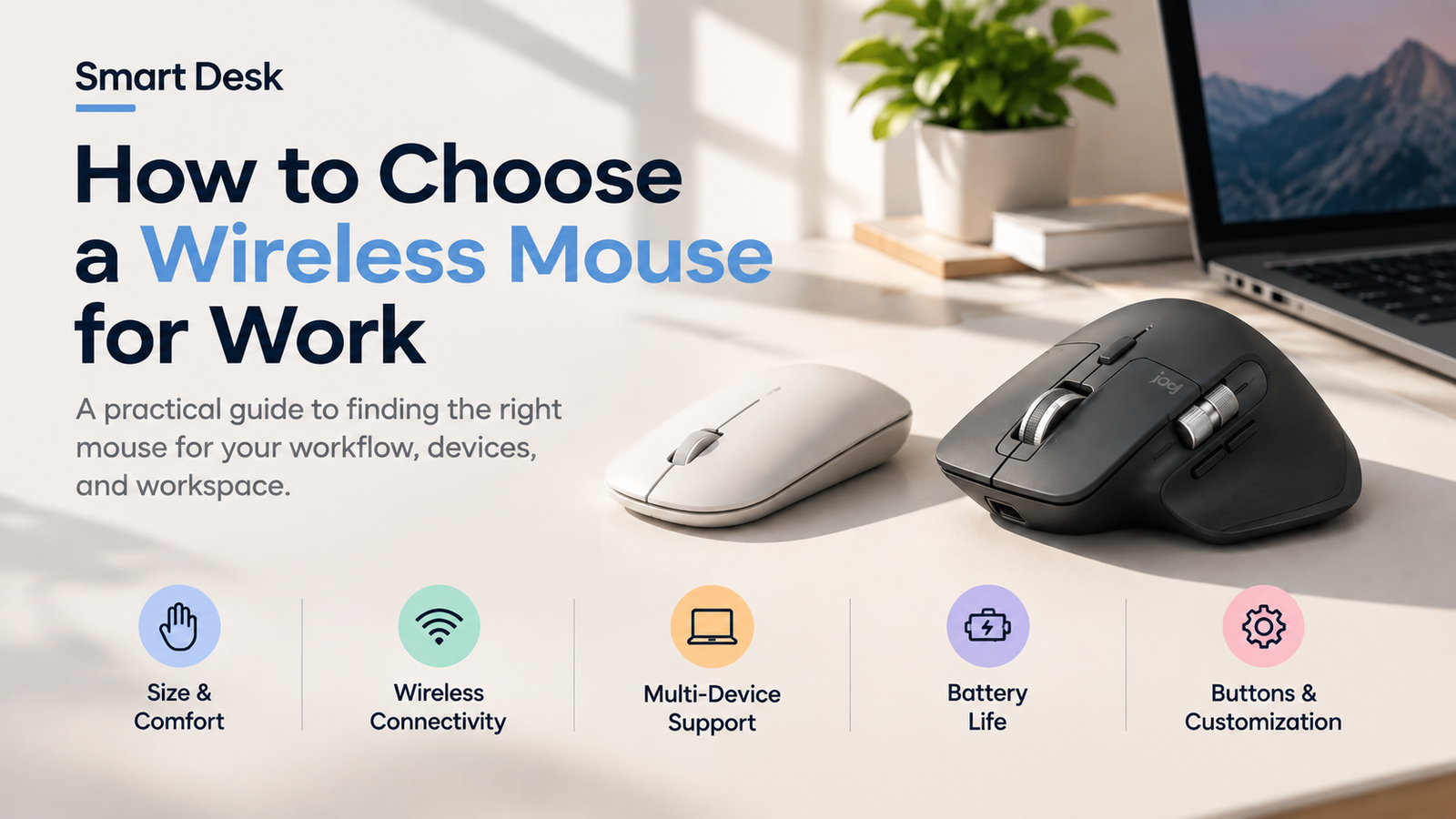
Learning how to choose a wireless mouse for work starts with understanding your hand size, workflow, and device setup. The best mouse is not always the one with the most features, but the one that fits how you work.
A compact mouse can be ideal for a laptop and mobile setup, while a larger productivity mouse may make more sense for long desk sessions and demanding workflows.
Research note: This is a research-based guide, not an independently hands-on tested review. Product specifications are based primarily on manufacturer information and established ergonomic guidance.
Quick Answer: What Should You Look for in a Work Mouse?
For most office and home-office users, focus on these factors:
- Size and shape
- Comfort and grip
- Wireless connectivity
- Buttons and scrolling
- Multi-device support
- Battery life
- Tracking and sensitivity
- Software and customization
- Portability
- Price
The most important point is simple: buy for your workflow, not for the longest specification list.
1. Start With Size and Shape
The first question is whether the mouse actually fits your hand.
A compact mouse is useful when you:
- Work primarily from a laptop
- Travel frequently
- Have limited desk space
- Prefer a lighter, simpler setup
A larger mouse can make more sense when you:
- Spend most of the day at a desk
- Prefer a palm-oriented grip
- Want additional controls
- Scroll through long documents or spreadsheets
OSHA recommends choosing a pointing device that matches the size and contour of your hand and positioning it so your wrist can remain relatively neutral.
Don’t assume bigger is better—or smaller is more portable and therefore better. Your hand size and grip style matter more.
2. Consider Your Grip
Most people naturally use one of three grip styles:
Palm Grip
Your palm rests more fully on the mouse.
This generally works better with larger, taller mice.
Claw Grip
Your palm has partial contact while your fingers remain more arched.
Medium-sized mice often work well with this grip.
Fingertip Grip
Only your fingertips contact the mouse.
Smaller and lighter mice can be a good fit for this style.
There is no universally correct grip. The goal is to find a mouse that you can control without excessive gripping or awkward wrist positioning.
3. Choose the Right Wireless Connection
The two most common wireless approaches are Bluetooth and 2.4GHz wireless receivers.
Bluetooth
Bluetooth is convenient for laptops because it doesn’t require a dedicated receiver.
It’s particularly useful if:
- Your laptop has limited USB ports
- You regularly move between locations
- You use several Bluetooth-compatible devices
2.4GHz Receiver
A wireless receiver provides a dedicated connection but uses a USB port.
Some productivity mice support both Bluetooth and a receiver, giving you more flexibility.
For example, the Logitech Pebble 2 M350s supports Bluetooth and can switch between three devices, while the MX Master 3S supports Bluetooth and Logitech’s Logi Bolt receiver system.
For a modern laptop setup, Bluetooth is usually the simpler option.
4. Do You Need Multi-Device Support?
If you use only one computer, this feature may not matter much.
But if you regularly use:
- A work laptop
- A personal computer
- A tablet
- A desktop and laptop at the same desk
then multi-device switching can be genuinely useful.
Both the Pebble 2 M350s and MX Master 3S support switching between multiple paired devices.
The key question is:
Will you actually use the feature?
If not, don’t pay extra simply because a mouse supports it.
5. Don’t Choose a Mouse by DPI Alone
DPI describes how sensitive the mouse is to physical movement.
A high maximum DPI can be useful in some setups, particularly with large or high-resolution displays, but higher DPI doesn’t automatically mean a better work mouse.
For everyday productivity, tracking consistency and comfortable sensitivity are generally more important.
Instead of asking:
“What’s the highest DPI?”
ask:
“Can I comfortably control the pointer at my preferred sensitivity?”
That’s a much more useful question.
6. Pay Attention to Scrolling and Buttons
For office work, scrolling can matter more than you might expect.
If you frequently work with:
- Long documents
- Spreadsheets
- Websites
- Research
- Project management tools
a better scroll wheel can save time.
Some productivity mice also add:
- Back/forward buttons
- Horizontal scrolling
- Gesture controls
- Custom shortcuts
The MX Master 3S, for example, uses Logitech’s MagSpeed electromagnetic scroll wheel and provides seven customizable buttons.
But more buttons aren’t automatically better.
If you mainly write emails, browse the web, and work in documents, a simple three-button layout may be all you need.
7. Check Software and Operating-System Support
Advanced mice often depend on desktop software for customization.
Useful features can include:
- Button reassignment
- Pointer sensitivity
- Application-specific profiles
- Gesture controls
- Device switching
If you use both Windows and macOS, check software compatibility before buying.
A mouse with extensive customization isn’t particularly useful if the features you want aren’t supported on your operating system.
8. Battery Life and Charging
For a work mouse, reliability is usually more important than maximum battery specifications.
Replaceable batteries
Pros
- No charging cable
- Easy to replace
- Convenient for travel
Cons
- Requires spare batteries
- Ongoing battery cost
Rechargeable batteries
Pros
- No disposable batteries
- Easy to charge at your desk
- Convenient for permanent setups
Cons
- Needs periodic charging
- Can be inconvenient if the battery runs out unexpectedly
Neither approach is universally better. Choose the one that fits your habits.
9. Consider Click Noise
If you work in a shared office, library, coworking space, or quiet home environment, click noise can matter.
Some mice specifically reduce clicking noise.
For example, Logitech’s Pebble 2 M350s uses Silent Touch technology, while the MX Master 3S uses Quiet Click technology.
If you work alone, however, this feature may not be worth paying extra for.
10. Don’t Ignore Ergonomics
The word “ergonomic” appears frequently in mouse marketing, but the label itself doesn’t guarantee a good fit.
Instead, look at:
- Hand size
- Mouse shape
- Grip style
- Wrist position
- Mouse placement
- Required grip force
OSHA recommends keeping the mouse close to the keyboard and maintaining a neutral wrist and arm position.
Your desk setup matters too. A good mouse can’t completely compensate for a poorly positioned keyboard, desk, or chair.
Left-handed users
Check the physical shape carefully.
Many productivity mice are specifically designed for right-handed users, while ambidextrous mice provide more flexibility.
11. Think About Portability
Your ideal mouse can change depending on where you work.
For a mobile setup
Prioritize:
- Compact size
- Low weight
- Bluetooth
- Long battery life
- Multi-device support
For a permanent desk
Prioritize:
- Comfortable shape
- Better scrolling
- Additional controls
- Customization
- Rechargeable battery
This is why a small travel mouse and a large productivity mouse can both be excellent choices for different users.
12. How Much Should You Spend?
You don’t need to spend $100+ for a good work mouse.
Under $30
- Basic office work
- Laptop users
- Portable setups
- Simple Bluetooth connectivity
The Logitech Pebble 2 M350s is an example of this category, with a compact design, Bluetooth connectivity, quiet clicking, and multi-device support.
$30–75
This range can add:
- Better ergonomics
- More buttons
- Better scrolling
- Multi-device support
- More customization
$75+
Higher-priced models may add:
- Advanced productivity controls
- Premium scrolling systems
- More extensive customization
- Specialized ergonomic designs
For example, Logitech lists the MX Master 3S at $89.99 in the U.S., although retail pricing can change.
The important question isn’t how much you can spend. It’s whether the additional features solve a problem you actually have.
Common Mistakes When Buying a Work Mouse
Choosing by DPI alone
A high DPI number doesn’t automatically mean better tracking or productivity.
Buying a mouse that’s too small
Compact can be great for travel but less suitable for long desk sessions for some users.
Buying too many features
Extra buttons and customization are useful only when they improve your workflow.
Forgetting about connectivity
A USB receiver may be inconvenient if your laptop has limited ports.
Ignoring hand preference
A right-handed ergonomic design won’t necessarily work for a left-handed user.
Assuming expensive means ergonomic
Price and fit are two different things.
A Simple Decision Framework
Use these questions to narrow down your options:
Do you travel frequently?
→ Prioritize compact size, low weight, and Bluetooth.
Do you use multiple computers?
→ Look for multi-device switching.
Do you spend most of the day at a desk?
→ Prioritize shape, comfort, scrolling, and controls.
Do you work with spreadsheets or long documents?
→ Consider a better scroll wheel and customizable buttons.
Do you work in a quiet environment?
→ Consider a quieter mouse.
Are you left-handed?
→ Check the shape before buying.
What About Vertical Mice and Trackballs?
A conventional mouse isn’t the only option.
A vertical mouse changes the orientation of the hand and forearm and may appeal to users who prefer a more upright position.
A trackball stays in one place and can be useful when desk space is limited or when you prefer stationary pointer control.
OSHA identifies vertical mice, trackballs, touchpads, and other pointing devices as alternatives to conventional mice.
If a standard mouse doesn’t suit your workflow, changing the type of pointing device may make more sense than simply buying a more expensive conventional mouse.
Two Common Work-Mouse Approaches
The Logitech Pebble 2 M350s and MX Master 3S illustrate two very different approaches.
Logitech Pebble 2 M350s
Compact, portable, simple, and focused on Bluetooth connectivity and quiet everyday use.
Logitech MX Master 3S
Larger and more productivity-focused, with additional controls, advanced scrolling, multi-device support, and extensive customization.
Neither approach is automatically right for everyone.
The choice comes down to:
Portability and simplicity vs. desk-based productivity and customization.
For a direct comparison, see:
Logitech Pebble 2 M350s vs MX Master 3S: Which Mouse Should You Buy?
For a deeper look at the MX Master 3S:
Logitech MX Master 3S Review
And when you’re ready to compare several options:
Best Wireless Mice for Work in 2026
FAQ
Not universally. Bluetooth is convenient and doesn’t require a receiver, while a dedicated receiver can be useful for users who prefer that type of connection. Mice supporting both offer the most flexibility.
Most office users don’t need an extremely high maximum DPI. Comfortable pointer control and appropriate sensitivity matter more.
Not necessarily. Some users prefer the stability of a heavier mouse, while others prefer a lighter design. Fit and personal preference matter more than weight alone.
Only if you regularly use multiple devices. Otherwise, it may not justify additional cost.
It can be, but the word “ergonomic” isn’t enough to determine whether a mouse will fit you. Size, shape, grip, and positioning matter.
Both rechargeable and replaceable-battery mice can work well. Choose based on whether you prefer charging or replacing batteries.
The Takeaway
Choosing a wireless mouse for work doesn’t have to be complicated.
Start with size and shape, then consider connectivity, device switching, scrolling, controls, battery type, and software.
For a portable laptop setup, a compact mouse may be all you need. For a permanent desk setup, a larger productivity mouse may justify its higher price through better controls and customization.
The goal isn’t to buy the mouse with the most features.
It’s to buy the mouse whose features actually fit the way you work.
Still Comparing Suitable Mouse?
Check out our Pebble 2 M350s vs. MX Master 3S comparison to see how their design, connectivity, buttons, and other features differ.
Related Smart Desk Guides
- How to Choose a USB-C Hub
- Logitech Pebble 2 M350s vs MX Master 3S: Which Mouse Should You Buy?
- Logitech MX Master 3S Review
- 【LINK】Best Wireless Mice for Work in 2026【/LINK】
Sources & Last Updated
- Logitech — Pebble Mouse 2 M350s
- Logitech — MX Master 3S
- Logitech — MX Master 3S technical specifications
- OSHA — Computer Workstations: Pointer/Mouse
Last Updated: October 1, 2026
Research status: Research-based. Smart Desk has not independently hands-on tested the products discussed in this guide.
Price note: Prices are manufacturer-listed U.S. prices checked October 1, 2026 and may change.