
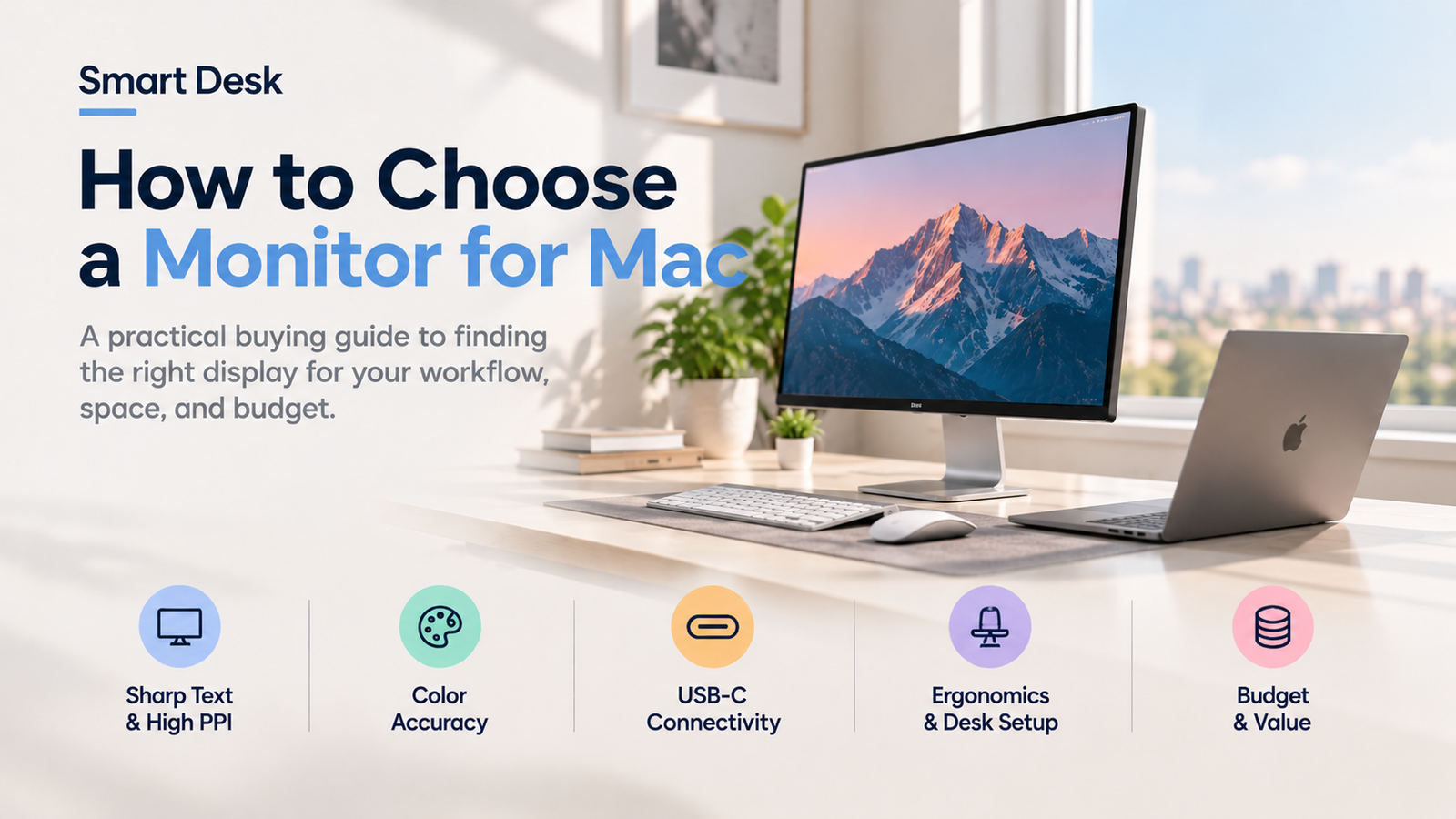
Choosing a monitor for your Mac is about more than finding a high resolution or a familiar brand. Pixel density, text clarity, color accuracy, connectivity, and your desk environment can all affect how comfortable a display feels during everyday work.
The right choice depends on how you use your Mac. A monitor for writing and research has different priorities from one for photography, video editing, or gaming. This guide explains the trade-offs to consider before you spend more on a premium display.
Research Status: Research-based buying guide. Products discussed have not been independently hands-on tested by Smart Desk.
Quick Answer: What Matters Most When Choosing a Mac Monitor?
For most Mac users, start with pixel density and text clarity, then check color performance, connectivity, and ergonomics. A high-resolution display can produce sharp text, but the result also depends on screen size, macOS scaling, panel characteristics, and viewing distance.
Before buying, confirm that your specific Mac supports the monitor’s intended resolution and refresh rate. Check the USB-C or Thunderbolt features, laptop charging power, screen finish, and return policy as well.
Sharp Text & Productivity
Priority: High pixel density and comfortable scaling.
- Check PPI, screen size, and viewing distance.
- Verify the effective workspace in macOS.
- Don’t compare resolution alone.
Best for: Writing, coding, research, and spreadsheets.
Creative & Color Work
Priority: Accurate and consistent color.
- Look for independent color measurements.
- Check panel uniformity and calibration options.
- Don’t confuse wide color gamut with accuracy.
Best for: Photography, design, and color-sensitive work.
One-Cable MacBook
Priority: Reliable connectivity and charging.
- Confirm USB-C video support.
- Check Power Delivery wattage.
- Verify compatibility with your Mac and dock.
Best for: MacBook users who want a cleaner desk.
| Your Priority | Check First | Common Mistake |
|---|---|---|
| Crisp text | PPI, scaling, viewing distance | Comparing resolution alone |
| Color-sensitive work | Accuracy, uniformity, calibration | Treating wide gamut as proof of accuracy |
| One-cable setup | USB-C video, charging, ports | Assuming every USB-C port is identical |
| Bright-room usability | Screen finish and reflections | Choosing glossy without checking lighting |
| Gaming and creative work | Resolution, refresh rate, bandwidth | Assuming every feature works simultaneously |
1. Find the Monitor Type That Fits Your Mac Workflow
Different workflows call for different monitor priorities. Start with the work you do most often, then compare the features that matter.
High-PPI Monitors for Sharp Text and Everyday Productivity
Best for: Writers, developers, researchers, and office workers.
Watch out for: Uncomfortable text size at unsuitable scaling settings.
If you spend most of your day reading documents, writing, browsing, or working with spreadsheets, prioritize text clarity. Pixel density, measured in pixels per inch (PPI), describes how tightly pixels are packed into a display.
For context, Apple lists its 27-inch Studio Display at 5120 × 2880 resolution and 218 PPI. Kuycon lists the 32-inch G32P at 6144 × 3456 and 223 PPI. These are manufacturer-published specifications, not independent test results. See the Apple Studio Display specifications and Kuycon G32P specifications.
High pixel density can make text and fine details look sharper. However, it does not guarantee that every display will render text identically. Panel subpixel layout, software rendering, and scaling can also affect the result. RTINGS explains these trade-offs in its monitor text-clarity testing guide.
Monitors for Design, Photography, and Color-Sensitive Work
Best for: Photographers, designers, and content creators.
Watch out for: Assuming wide color gamut guarantees accurate or uniform color.
Creative professionals should look beyond resolution. Color gamut describes the range of colors a display can reproduce; color accuracy describes how closely those colors match the intended values.
A monitor advertising wide DCI-P3 coverage may still need calibration or more independent testing before it can be trusted for color-critical work. Look for measured accuracy results, white-point consistency, calibration options, and useful color modes.
Monitors for Gaming and Mixed Work
Best for: Users who combine everyday productivity with gaming or motion-heavy work.
Watch out for: Resolution, refresh-rate, and connection bandwidth limitations.
Refresh rate determines how many times per second a display can update its image. A 60Hz monitor may be sufficient for writing, research, and many creative tasks. Higher refresh rates can provide smoother motion for gaming and other fast-moving content.
Check the combination of resolution and refresh rate your Mac can actually output. Do not assume a display’s advertised maximum refresh rate is available at every resolution or through every connection.
2. Think About How Much Space You Have
Screen Size, Viewing Distance, and Effective Workspace
A larger screen gives you more physical room for windows, but screen size alone does not determine how much usable workspace you get. Resolution and macOS scaling also matter.
A 27-inch 4K monitor, for example, has a different pixel density from a 27-inch 5K monitor. Higher density can improve fine detail, but it may also make interface elements appear too small at an unsuitable scaling setting.
Consider your typical viewing distance, preferred text size, and the applications you use. If possible, test the intended resolution and scaling before committing to an expensive display.
Glossy vs. Matte Screens in a Real Desk Setup
Screen finish matters because your room affects what you see. Windows, overhead lights, desk lamps, and bright objects behind you can create distracting reflections.
Glossy Screens
- Often suit desks with controlled lighting.
- Can provide a clear, glass-like appearance.
- May show distracting reflections from windows and lamps.
Matte Screens
- Diffuse reflections rather than showing them as sharply.
- May be easier to use in bright environments.
- Coating texture can affect perceived image clarity.
Neither finish is universally better. Before buying, assess where the monitor will sit relative to windows and lights. If you cannot change the lighting, give reflection handling greater weight in your decision.
3. Find a Level of Sharpness and Color Quality You’ll Enjoy
Resolution and Pixel Density: What Actually Affects Text Clarity?
Resolution is the number of pixels in the image; PPI relates that resolution to physical screen size. Both help explain sharpness, but neither tells the entire story.
A higher-resolution monitor can offer finer detail, yet the practical improvement depends on viewing distance, scaling, panel characteristics, and your eyesight.
Text Clarity Checklist
- Check resolution and screen size together.
- Compare PPI rather than resolution alone.
- Verify your preferred macOS scaling.
- Consider your normal viewing distance.
- Look for independent text-clarity testing.
For a Mac buying decision, also verify that your exact model supports the display at the resolution and refresh rate you want. Apple’s external-display support guide explains that supported display counts and configurations vary by Mac model.
Color Gamut Is Not the Same as Color Accuracy
A wide color gamut lets a monitor reproduce a broader range of colors. Accuracy concerns whether the colors it displays are correct for a given standard or workflow.
Color Gamut
What it tells you: The range of colors a monitor can reproduce.
What it doesn’t tell you: Whether those colors are accurate.
Color Accuracy
What it tells you: How closely displayed colors match a reference standard.
What it doesn’t tell you: Whether the panel is perfectly uniform.
Panel Uniformity
What it tells you: How consistent brightness and color appear across the screen.
What it doesn’t tell you: Whether the display is accurately calibrated.
For everyday office work, you may not need expensive professional calibration features. For photography, design, and video work, look for independent measurements and clear information about calibration.
RTINGS provides a useful explanation in its monitor color-accuracy testing guide.
HDR, Brightness, and Color Controls
HDR support can be useful, but the label alone does not tell you how convincing HDR will look. Brightness, contrast, local-dimming behavior, tone mapping, and software support all influence the experience.
Before buying an HDR monitor for your Mac, verify:
- Whether HDR works with your Mac and intended connection.
- Whether brightness and color controls remain accessible.
- Whether the monitor has meaningful HDR performance measurements.
- Whether firmware or software settings affect the workflow.
Some third-party displays rely on their own on-screen controls or separate software utilities. Check the exact model and firmware before assuming all settings will work through macOS.
4. How Do You Want to Stay Connected?
USB-C vs. Thunderbolt: Check the Actual Capabilities
A USB-C connector does not automatically guarantee video output, fast data transfer, or laptop charging. Those functions depend on the monitor, the port’s capabilities, the cable, and the Mac.
Thunderbolt can provide a more capable connection for supported displays and accessories, but the exact configuration still matters. Before purchasing, confirm the complete connection path rather than relying on the shape of the connector.
Apple’s display connection guidance and troubleshooting guide explain why the Mac, cable, adapter, and display must support the intended configuration.
Power Delivery, Docks, and One-Cable Workflows
If you use a MacBook, USB-C Power Delivery can let one cable carry video, data, and charging. Check the monitor’s stated charging wattage and compare it with your laptop’s requirements and workload.
A monitor with a USB hub may reduce desk clutter, but it may not replace a dedicated dock if you need multiple displays, high-speed storage, Ethernet, or additional peripherals.
| Feature | What to Verify |
|---|---|
| Video output | Supported resolution and refresh rate |
| Laptop charging | Power Delivery wattage |
| USB peripherals | Available downstream ports |
| External storage | Supported data-transfer speeds |
| Dock compatibility | Mac, dock, cable, and display support |
A monitor’s headline resolution and refresh rate may depend on the input used, cable specification, compression support, and computer hardware. Confirm that the full combination you need is supported.
Resolution and Refresh Rate Must Work Together
If the screen fails to reach its advertised resolution or refresh rate, Apple’s troubleshooting advice includes checking the cable and adapter and connecting the monitor directly to the Mac to help isolate a hub or dock issue.
5. Which Extra Features Are Actually Worth It?
High Refresh Rates, HDR, and Other Premium Features
Spend on features you will notice in your daily work. If your day consists mainly of documents, browser tabs, and email, sharp text, suitable scaling, and comfortable ergonomics may be more valuable than a high refresh rate or advanced HDR.
For gaming or motion-heavy creative work, refresh rate and response behavior deserve more attention. For color-sensitive production, measured color performance may matter more than additional ports or built-in speakers.
Stands, Ergonomics, and On-Screen Controls
A display with the right resolution can still be uncomfortable if you cannot position it correctly. Check height adjustment, tilt, VESA mounting support, and whether the stand is included or sold separately.
Also consider how easily you can adjust brightness and switch inputs. Small usability details become more important when you use the monitor for hours every day.
Marketing Claims Worth Double-Checking
Before trusting a headline specification, ask what it means in practice:
| Advertised Feature | What You Should Verify |
|---|---|
| High resolution | Text clarity and macOS scaling |
| Wide color gamut | Independent color-accuracy measurements |
| USB-C connectivity | Video, data, and charging capabilities |
| HDR support | Brightness, contrast, and real HDR performance |
| High refresh rate | Supported resolution and connection requirements |
| Premium design | Ergonomics, build quality, and warranty coverage |
Clear answers are more useful than an impressive specification sheet by itself.
6. What Does Your Everyday Setup Look Like?
MacBook Docked at a Desk
Top priority: Connectivity and charging
Confirm display compatibility, charging power, downstream ports, and whether the monitor can replace part of your dock setup.
Best for: MacBook users who want fewer cables and a cleaner desk.
Don’t overlook: Power Delivery wattage and compatibility with existing accessories.
A Desktop Mac for Writing and Research
Top priority: Comfortable text clarity
Focus on text clarity, comfortable scaling, viewing distance, and screen reflections. A premium display may be worthwhile if you spend many hours reading and writing, but compare the actual experience and independent evidence before paying extra.
Best for: Writers, developers, researchers, and office workers.
Don’t overlook: Screen size, effective workspace, and desk lighting.
A Creative or Gaming Setup
Top priority: Performance for your applications
Color-sensitive work calls for measured accuracy and calibration options; gaming places more emphasis on refresh rate, response behavior, and supported resolution combinations.
Best for: Designers, photographers, video editors, and mixed-use users.
Don’t overlook: Color uniformity, graphics workload, and connection bandwidth.
7. How Much Should You Spend?
Budget, Midrange, and Premium Monitor Priorities
Rather than relying on fixed price brackets that quickly become outdated, think in terms of what each spending level needs to deliver.
Budget
Get the Essentials Right for Use
Prioritize reliable connectivity, appropriate resolution, acceptable text clarity, and a usable stand.
Best for: Everyday work without unnecessary premium features.
Midrange
Balance Performance and Comfort
Look for a balanced combination of pixel density, color performance, connectivity, and ergonomics.
Best for: Users who want meaningful improvements without paying for every premium feature.
Premium
Pay for Features You’ll Actually Use
Consider higher pixel density, more advanced connectivity, measured color performance, and better workflow integration—but only if these benefits solve a real problem for you.
Best for: Demanding workflows where display quality or connectivity directly affects productivity.
* Prices and availability vary by retailer and date. Check current listings before comparing value.
Is a Premium High-PPI Monitor Worth It?
It can be, particularly if sharp text, a large workspace, and a streamlined desk setup are central to your work. But a premium price does not guarantee perfect panel uniformity, flawless quality control, or a better experience for every user.
Kuycon is one example of a brand offering high-resolution displays aimed at Mac users. Its G32P specifications include a 32-inch 6K panel, 223 PPI, 60Hz refresh rate, and up to 100W USB-C Power Delivery, according to the manufacturer’s specification page. These are manufacturer-published claims, not independent performance measurements.
Before considering a premium alternative, compare its specifications with your needs, read independent testing where available, and confirm the warranty and return terms that apply to your seller and location.
8. A Few Things to Watch Out For
☐ Don’t Assume Every Panel Will Look Identical
Public user reports can help identify questions to investigate, but they cannot establish how frequently an issue occurs.
For example, individual Reddit users have reported concerns about color uniformity on the Kuycon G32P, and some users described a vertical line appearing on a Kuycon P27Z.
These are anecdotal reports, not controlled tests or evidence of a brand-wide defect rate.
☐ Check Return Policies Before Buying
Read the policy for the actual seller, not just the manufacturer’s general website. Confirm the return window, restocking fees, shipping costs, warranty duration, and who pays for return shipping if the display is defective.
These details are especially important for expensive monitors that may be difficult or costly to ship. Save the product listing and applicable terms at the time of purchase.
☐ Treat Community Reports as Signals, Not Statistics
A Reddit thread can reveal a potential issue worth checking. It cannot, by itself, tell you how common that issue is. Positive anecdotes have the same limitation.
Use community feedback to develop questions, then look for independent testing, official specifications, and clear after-sales terms before making a decision.
Before You Buy:
- Confirm your Mac supports the intended resolution and refresh rate.
- Verify the exact USB-C or Thunderbolt connection requirements.
- Check Power Delivery wattage if using a MacBook.
- Review screen finish and room lighting.
- Read independent measurements when available.
- Confirm the seller’s return and warranty terms.
- Check dead-pixel and panel-defect policies.
- Save the product listing and purchase documentation.
After Delivery:
- Inspect the panel for dead pixels and visible lines.
- Check white, gray, and black backgrounds for uniformity.
- Test your preferred macOS scaling.
- Verify resolution and refresh rate.
- Test HDR and color controls if needed.
- Check all intended inputs and USB accessories.
- Contact the seller promptly if you discover a problem.
FAQ
There is no single resolution that suits every Mac user. Consider screen size, pixel density, scaling preferences, and the capabilities of your specific Mac. Higher resolution can improve fine detail, but compatibility and comfortable text size matter too.
It can be worthwhile if you value fine text rendering and a high-density workspace. Compare it with suitable 4K and 6K alternatives, and check whether your Mac supports the resolution and refresh rate you want.
No. The connector alone does not guarantee the required video mode, resolution, refresh rate, data features, or charging power. Verify the monitor, cable, and Mac specifications together.
They can work well in controlled lighting, but reflections may be distracting in a bright room. Consider your desk’s lighting and the display’s coating before deciding.
No. Gamut describes the range of colors the display can reproduce; accuracy describes how closely the displayed colors match the intended standard. Look for independent measurements if color fidelity matters.
These are reasonable factors to consider, especially with premium displays. Individual reports do not establish a defect rate, so check independent evidence and the seller’s return and dead-pixel policies.
It may suit buyers seeking a high-resolution display with particular specifications or connectivity options, but the choice depends on the exact model, price, measured performance, support, and return terms. Manufacturer specifications alone are not enough to establish equivalence to an Apple display.
Verify the exact model’s resolution, refresh rate, ports, charging power, Mac compatibility, and included accessories. Then confirm the terms offered by the seller you will actually purchase from. Warranty coverage and return conditions may differ by seller and region.
Final Verdict
The best way to choose a monitor for Mac is to start with your workflow rather than the most impressive specification.Start with the features that matter most to your setup, then compare current options against those requirements.
- For sharp text: Compare high-PPI 4K, 5K, and 6K monitors.
- For a MacBook desk setup: Compare USB-C video support, Power Delivery, and downstream ports.
- For creative work: Look for independent color-accuracy measurements and calibration options.
- For a premium display: Compare specifications, seller terms, and return policies before deciding.
Still Not Sure Which Monitor to Get?
Explore our Best Monitors for Mac picks to compare top options and discover the best fit for your workflow, needs, and budget.
Disclosure: Smart Desk may earn commissions from qualifying purchases made through affiliate links. This does not affect the price you pay and helps support our research-based content.
Sources & Last Updated
- Apple Studio Display — Technical Specifications
- Apple Support — Connect Displays to Your Mac
- Apple Support — External Display Troubleshooting
- RTINGS — Monitor Text Clarity
- RTINGS — Monitor Color Accuracy
- Kuycon G32P — Official Specifications
- Kuycon US — Warranty
Last Updated: October 17, 2026
Research status: Research-based. Smart Desk has not independently hands-on tested the products discussed in this guide.
Price note: Prices are manufacturer-listed U.S. prices checked October 17, 2026 and may change.