
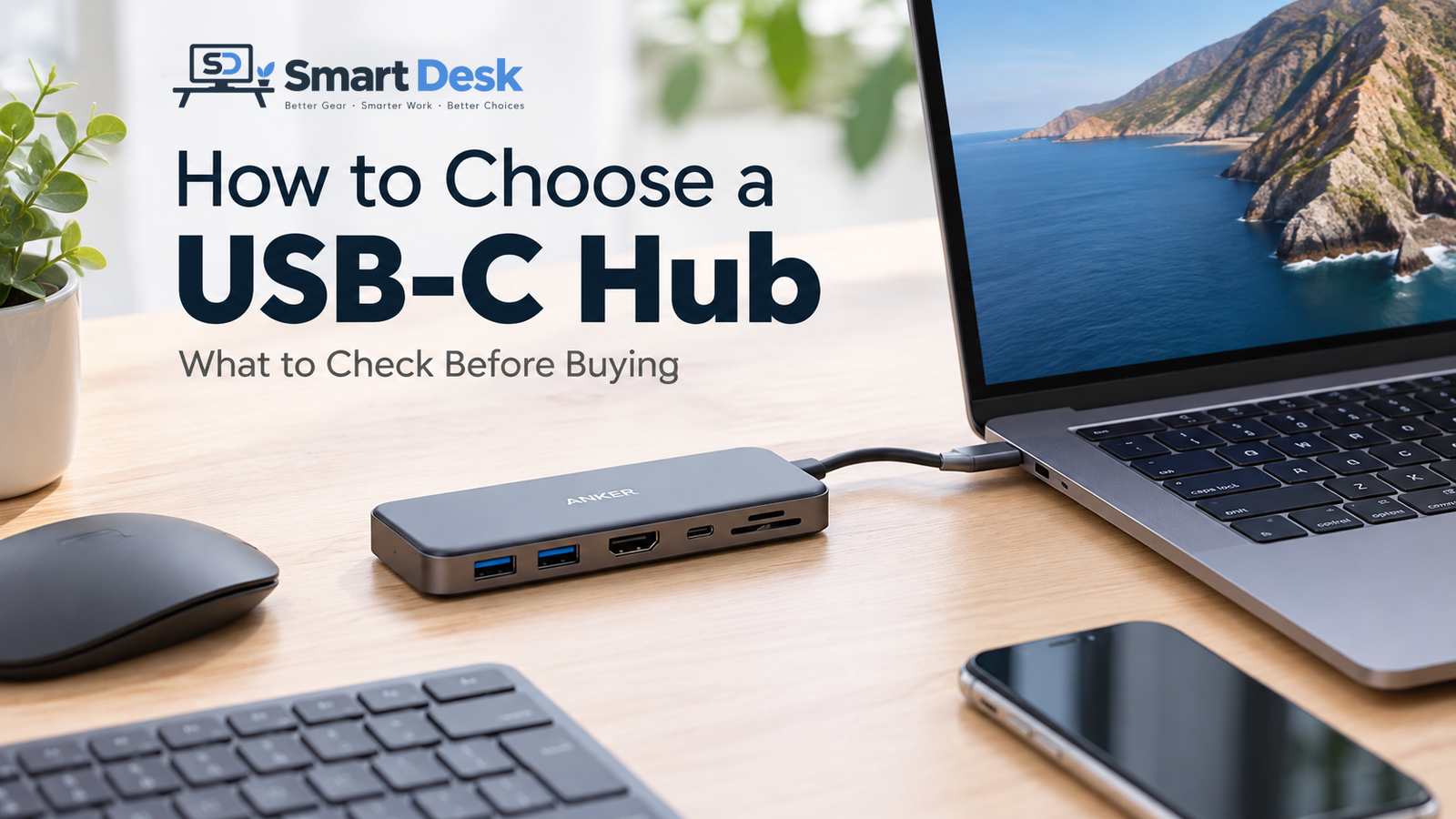
How to choose a USB-C hub starts with understanding what you actually need from your desk setup. A USB-C hub can turn a laptop with only a few ports into a much more flexible desk setup. But choosing one isn’t simply about counting how many ports are listed on the box. The important question is whether the hub provides the right ports, speeds, display support, and charging capabilities for your devices.
Two USB-C hubs can look almost identical while offering very different capabilities. One might be designed mainly for connecting a mouse, keyboard, and external drive, while another may add Ethernet, SD card readers, faster USB connections, and higher-resolution display support. That’s why it’s worth checking the specifications before buying.
In this guide, we’ll walk through the main things to check when choosing a USB-C hub, including ports, data speeds, external displays, charging, compatibility, and overall value.
How to Choose a USB-C Hub: Start With the Ports You Actually Need
The first thing to check is simple: what do you actually need to connect? Make a list of the devices you regularly use with your laptop. That could include a keyboard, mouse, USB drive, external SSD, monitor, Ethernet cable, SD card, or charger.
For a basic desk setup, you may only need a few additional connections. For example, a keyboard, mouse, and HDMI monitor could make a five-port hub sufficient. If you regularly work with external storage, cameras, SD cards, or wired networking, you’ll probably need a hub with a broader selection of ports.
More ports aren’t automatically better. Extra connections can be useful, but they can also increase the size, price, and complexity of the hub. The goal is to find a hub that covers your actual workflow rather than paying for ports you rarely use.
Check the USB Data Speed
The next specification to check is USB data speed. This matters most when you’re transferring files between your laptop and external storage or other high-speed devices.
A specification such as 5Gbps or 10Gbps describes the maximum advertised data-transfer rate of the relevant connection. It doesn’t mean you’ll always transfer files at exactly that speed. Actual performance can depend on the connected device, cable, computer, and other factors.
For everyday accessories such as keyboards, mice, and basic USB devices, you may not need extremely high transfer speeds. If you regularly move large video files, photo libraries, or other large datasets, however, a faster USB connection can be more relevant.
For example, Anker’s 332 USB-C Hub lists its USB-A and USB-C data connections at up to 5Gbps. The Anker 555 lists USB data connections at up to 10Gbps, making the two hubs meaningfully different for users who frequently move larger files.
Pay Attention to External Monitor Support
If you’re buying a USB-C hub to connect an external monitor, don’t assume that every USB-C port can carry video. USB-C describes the physical connector, not a single universal set of capabilities. Display output depends on the device, port, and hub’s supported technology.
DisplayPort over USB-C uses an Alternate Mode that allows compatible USB-C connections to carry display signals. This means you need to check whether your laptop and the hub support the display connection you intend to use.
You should also check the resolution and refresh rate supported by the hub. For example, a hub advertising 4K support may specify 4K at 30Hz rather than 4K at 60Hz. Those are not equivalent experiences, particularly if you want a smoother desktop display.
As an example, Anker’s 332 supports HDMI output up to 4K at 30Hz, while the Anker 555 lists HDMI support up to 4K at 60Hz. If your monitor setup depends on 4K at 60Hz, that difference is important to check before buying.
Check Power Delivery and Charging
If you want the hub to charge your laptop while other accessories are connected, check whether it supports USB Power Delivery, commonly shown as USB PD.
Don’t look only at the largest wattage number in the product description. You should check how much power the hub can actually pass through to the laptop after the hub itself uses some power.
For example, Anker lists the 332 with up to 100W PD input and 85W laptop output. The 555 similarly lists up to 100W input and 85W laptop output. In both cases, the advertised input figure and the laptop output figure are different, which is exactly why it’s worth reading the detailed specifications rather than relying on a headline number.
You should also remember that the hub doesn’t necessarily replace your laptop charger. If you want to use pass-through charging, you’ll generally need a compatible USB-C power adapter connected to the hub.
Check Compatibility Before You Buy
Compatibility is another area that’s easy to overlook. A hub may physically connect to your laptop but still not support every feature you want to use.
This is especially important for MacBooks, Windows laptops, tablets, and other devices that may have different USB-C capabilities. The USB-C connector itself doesn’t guarantee that every connected function will work in the same way across devices.
It’s also worth checking the manufacturer’s compatibility list and notes. For example, Anker provides specific compatibility information and limitations for both its 332 and 555 hubs, rather than simply describing them as universally compatible.
Do You Need Ethernet, SD Cards, or Other Ports?
Once you’ve covered the basics, think about the less common ports you might actually need. Ethernet can be useful if you prefer a wired network connection, while SD and microSD card readers can matter if you regularly work with cameras or removable storage.
This is one area where the difference between inexpensive and more capable hubs can become obvious. A smaller hub may focus on basic USB connections, HDMI, and charging, while a larger model may add networking and memory-card readers.
For example, the Anker 332 is a five-port design with USB-A, USB-C data, HDMI, and USB PD input. The Anker 555 expands that to eight ports and adds Gigabit Ethernet, SD, and microSD card slots.
Hub vs. Dock: What’s the Difference?
You may also come across the terms USB-C hub and USB-C dock. The distinction isn’t always used consistently in everyday product marketing, so it’s better to focus on the actual specifications rather than the label alone.
DisplayPort’s official FAQ notes that, under USB-IF terminology, a USB hub is a product focused on USB functionality, while a product supporting DisplayPort Alternate Mode is considered a dock. In the consumer market, however, products are often marketed using both terms.
For a simple laptop setup, a compact hub may be enough. If you’re building a more permanent workstation with multiple displays, networking, storage, peripherals, and charging, a more capable dock may make more sense.
Don’t Pay for Specifications You Won’t Use
It’s easy to assume that the most expensive hub must be the better choice. But the better approach is to match the specifications to your setup.
If you only need a few USB connections, HDMI, and pass-through charging, paying significantly more for Ethernet, SD card readers, and higher-speed USB ports may not provide much practical benefit.
On the other hand, buying a basic hub and discovering later that it doesn’t support the display resolution, network connection, or storage workflow you need can be more expensive in the long run.
The right USB-C hub is therefore not necessarily the one with the most ports. It’s the one that covers the connections and capabilities you actually need without unnecessary extras.
Anker 332 vs. a More Capable Hub
A useful way to apply these criteria is to compare two hubs with different feature sets. The Anker 332 is positioned as a compact five-port option, with two USB-A data ports, one USB-C data port, HDMI, and USB PD input. Its listed USB data speed is up to 5Gbps and HDMI output is up to 4K at 30Hz.
The Anker 555 takes a broader approach with eight ports, including Ethernet, SD, and microSD, alongside faster 10Gbps USB connections and HDMI output up to 4K at 60Hz.
That doesn’t automatically make one product right for everyone. The more important question is which set of specifications matches your workflow. A person who mainly needs basic laptop connectivity may not need the additional ports, while someone working with wired networking, memory cards, or larger file transfers may find those features more relevant.
A Simple USB-C Hub Buying Checklist
Before buying a USB-C hub, check these specifications:
- Ports: Does it have every connection you actually need?
- USB speed: Is it fast enough for your storage and file-transfer needs?
- Display: Does it support your monitor’s resolution and refresh rate?
- Charging: Does the PD input and laptop output meet your requirements?
- Compatibility: Does it work with your laptop and other devices?
- Extra ports: Do you need Ethernet, SD, or microSD?
- Size: Will the hub fit comfortably into your desk or travel setup?
- Price: Are you paying for features you will actually use?
Final Thoughts
Choosing a USB-C hub doesn’t have to be complicated. Start with the devices you need to connect, then work backward through data speeds, display support, charging, compatibility, and any additional ports you may need.
For a simple setup, a compact hub with the right basic connections may be all you need. For a more demanding workstation, paying for faster data connections, additional ports, networking, or better display support may make more sense.
The key is to compare the specifications that affect your actual workflow rather than choosing a hub based on the number of ports or the price alone.
Still Comparing USB-C Hubs?
Check out our Anker 332 vs. Anker 555 comparison to see how their ports, speeds, display support, and other features differ.
Disclosure: Smart Desk may earn a commission if you purchase through affiliate links on this site, at no additional cost to you.